Showing posts with label Applications. Show all posts

How to Take Better Photos With a Phone


The best camera you have with you is likely to be your smartphone. Use it to take the best photos possible with the help of these simple tips.

Professional photographer Chase Jarvis lives by the maxim that the best camera is the one that you have with you. These days that's likely to be your camera phone. How can you optimize the photos you take with it? Read on for some quick tips.

Zoom with your feet: Many camera phones include a digital zoom function, which you should avoid because it will quickly degrade the quality of your final image. Whenever possible, get closer to your subject by walking up to it (or wait for the subject to come to you).

Look for the light: Good photography requires good light. You can't always choose when to take photos, but avoiding midday glare is always a good idea due to the harsh shadows that appear at this time.

Get steady shots: To avoid blur, shake the camera as little as possible. Camera phones aren’t always the best shape for ensuring a good, steady grip, but you can use a nearby wall or telephone pole as a makeshift brace. Alternatively, consider a cell phone tripod such as Joby's Gorillamobile.

Clear the background: If you want to capture great portraits, pay attention to what's behind your subject. Try to find a simple, uncluttered background--nothing looks worse than tree branches or some other distraction appearing to grow out of your subject's head!

Crank up the resolution: Change your phone's camera-quality settings to ensure that it captures images at the highest resolution possible. The higher the resolution, the higher the quality of your final photo. Check out our smartphone camera roundup to get an idea of which phones offer the best cameras.

Be wary of shutter lag: Make sure to hold the phone steady until you see the final image on the screen. Significant shutter lag plagues most camera phones; this means that the camera is still engaged in the act of capturing the image after you have pressed the shutter button. The lag may last only a second or so, but that can be enough to blur the image.

You don't need crazy accessories to take great photos with your phone.Experiment with angles: The compact dimensions of a phone may give you the opportunity to exploit interesting angles or vantage points that you can't with a DSLR or digital point-and-shoot camera. Don't be afraid to try a variety of angles or elevations to capture unique images.

Keep it clean: Make sure that the camera lens on your phone is clean. People often keep their phones in pockets that they use for all manner of things, but if you ensure that the lens stays clear of grease, dust, and scratches, your photography will benefit.

Fill the frame: Try to fill the screen with your subjects. It's a simple way to give photos more impact and make them stand out on small displays. For example, head-and-shoulder portraits often appear more dramatic than full-length body shots.

Shoot more and shoot often: Taking a lot of pictures is good for getting extra practice, and it increases your chances of capturing a fantastic photo. Unless your memory space is limited, snap away while you can, and delete the duds later.

How to Recover a Lost Phone, Tablet, or Laptop


These terrific tools and tips can rescue your wayward mobile devices and keep your personal data from falling into the wrong hands.

he bad news: At some point, your cell phone is likely to go missing. Whether it falls out of your pocket in a cab, or you leave it unattended in a public place for a few seconds only to have it swiped by someone with sticky fingers and low moral fiber, your phone is vulnerable. In fact, according to a report from security software company Symantec, 36 percent of U.S. consumers have had a cell phone disappear on them.
If that phone is a smartphone--or if the missing item is another valuable mobile device such as a laptop or a tablet--thieves will be even more motivated to do their dirty work. And misplacing your gear or having it stolen is more than just a hassle: Given the amount of information that people store on their devices, losing a gadget may very well mean not only losing your files, contacts, and photos, but also seeing your identity stolen.
What can you do? Start by following these simple steps before your favorite tech goodies go MIA. Although we can’t guarantee that you’ll get your missing phone, laptop, or tablet back, we can at least help you ensure that no unauthorized person starts peeking at your most personal details, and we can help you increase the odds that your gadget will return to you.

Preventive Protection

Use a password: The first step in securing your laptop, phone, or other mobile device is to put a password on it. Needing to enter a password whenever you use your phone may seem inconvenient, but you’ll appreciate having taken the precaution should the device fall into the wrong hands.
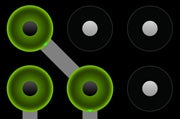
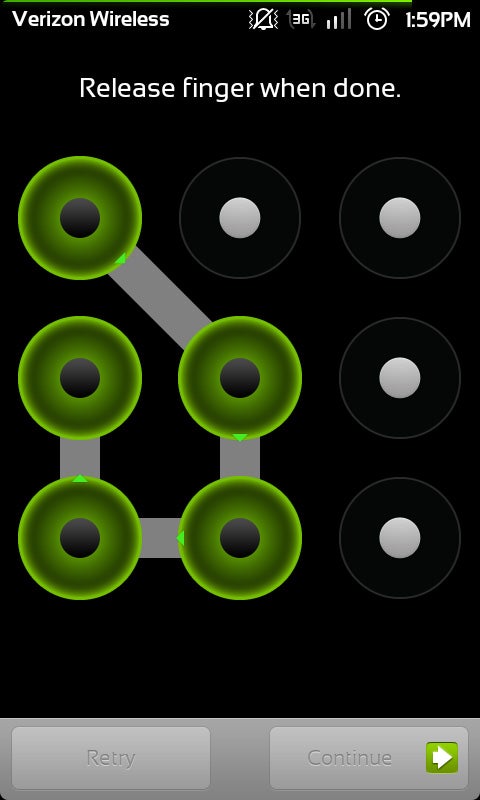
Phone Unlock PatternSetting a PIN or an unlock pattern (shown) won’t stop a determined thief, but it's an easy way to add an extra layer of security.On iOS, you can assign a four-digit PIN to keep your iPad or iPhone from being unlocked easily. If you own an Android phone, you can choose either a PIN or a pattern; with a pattern, you unlock your device by drawing a simple shape on the screen. For both Android and iOS, these security options reside under the ‘Settings’ menu. For most Android devices, the option to add a PIN or pattern appears under ‘Location and Security’. On iOS you’ll find the option to set a PIN under ‘General’, then ‘Passcode Lock’.
Remember not to choose an excessively simple PIN like 0000 or 1234. You don’t want to make it unduly easy for anyone other than yourself to access your assorted devices.
In addition, always lock your laptop’s screen when you step away for any period of time, to keep prying eyes from peeping at your work. In Windows, hold down the Windows key and press the Lkey; that will take you to the login screen.
In Mac OS X, open Keychain Access in your Utilities folder (or do a Spotlight search for it), and within the Keychain Access menu, select Preferences. From there, check the box labeled Show keychain access in the menu bar. A lock icon will appear in the menu bar; that icon will allow you to lock your password keychains, as well as your screen.
Use security software on your smartphone: Even though PINs, patterns, and passwords are a good first line of defense, you’ll need much more to keep your data safe. In fact, one of the first things you should do when you purchase a new phone is to install a mobile security suite.
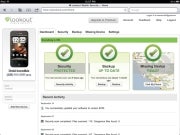
Lookout Mobile SecurityThe Lookout Web portal lets you remotely track a lost Android phone.On Android, apps such as Lookout Mobile Security, Norton Mobile Security, Seekdroid, and Webroot Mobile Security let you remotely locate your absent device, lock it, or wipe all data from it. Some of these apps also in­­clude antimalware and phishing safeguards, so you’ll be protected even in your day-to-day activities. Seekdroid costs $1, while the rest of the listed mobile security suites are free (you will have to pay extra to unlock all of their features, however).
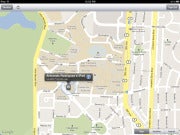
Find My iPhone Find My iPhone can track a missing Apple iOS device, and erase it if necessary.Apps for iOS are more limited. We recommend that you install the Find My iPhone app on all of your iPads, iPhones, and iPod Touches. After installing the app, you can use your Apple ID to sign in to Me.com, which will open to a map showing your iOS device’s approximate location, as well as options for displaying a message on the lost hardware, remotely locking it, or remotely wiping it. Find My iPhone does require a little setup, but operation is straightforward once you have it working.
The only drawback to Find My iPhone is that it’s easy to disable, whereas several of the Android security suites we’ve mentioned will either request a password or hide the app. We’re hoping that you followed our earlier advice and set up a PIN on your device to prevent people from getting into it and then uninstalling the security app.
Track your laptop: You can hunt down a lost laptop in much the same way that you track a missing smartphone. Consider investing in LoJack for Laptops, a subscription service that makes it easier for both you and law enforcement to find your laptop. The service permits you to track the notebook’s location (some plans track only IP addresses, while others track by using GPS), lock it so that nobody can access the data, remotely wipe the hard drive, and perform other tasks. LoJack requires a piece of software that you install on your computer; versions are available for Windows and Mac. Plans start at $40 per year.
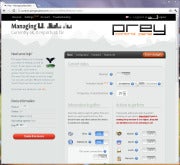
PreyPrey, for computers and Android phones, will track items, lock them, and more.If you prefer tracking your laptop yourself, try out Prey, which installs a small piece of software on your computer that lets you track the system’s location via an online control panel. You can also capture screenshots of your laptop if it goes missing (to gather information about a thief), take a photo using the built-in webcam, sound an alarm (useful if you misplace your laptop nearby), remotely lock the computer, and more. The Prey software runs on Windows, Mac OS X, Linux, and Android; installation is fairly straightforward.
The free version of Prey allows you to monitor up to three devices (computers or Android-based phones), and the various “Pro” account options range in price from $5 for a personal account to $400 for a large business.
At this writing, Apple was working on Find My Mac, which is similar to Find My iPhone but for Apple laptops. Find My Mac may be available by the time you read this.
A word of caution: Privacy concerns about device-tracking products have begun to emerge. Shortly before we went to press, a judge ruled that a woman in Ohio could sue Absolute Software, makers of LoJack for Laptops, for allegedly infringing on her privacy after she had unknowingly purchased a stolen laptop. So if you decide to use a device-tracking product on your gear, be sure to use it responsibly.
Lock your laptop: A physical lock isn’t foolproof, but it will help prevent someone from swiping your machine off your desk. Companies such as Kensington and Targus sell assorted products that attach to or link through the lock port on most laptops. One from Targus even has an alarm that sounds when someone picks up your laptop.

How To Expand Your Smartphone's Battery Life


The battery in Marjorie Hoosier's smartphone doesn't last through the day. She asked the Cell Phones, Mobile Devices forum for advice.

A phone battery should last--even under heavy use--for the 16 or 17 hours from when you wake up until you go to bed. (I'm assuming that you recharge your phone at night.) Unfortunately, a great many phones can't always make it through the day.

But there are settings that can extend the phone's battery life. Try turning off Wi-Fi, and set your phone to not automatically sync email, your calendar, or other cloud-centered apps. If you have an Android phone, consider removing some of your widgets; since their function is to show you live data, they have to be working at all times.


Android Battery Usage ScreenYou might also want to remove other power-hungry apps. If you have an Android phone, go to the launcher (what Windows users think of as the "desktop"), press the Menu button and tap Settings>Battery & data manager>Battery usage to identify the hogs.

If that doesn't help, look for places in your daily routine where you can conveniently give your phone an extra charge. If you drive a lot, get an adapter for your car's cigarette lighter and charge while driving. Or plug the phone in when working at your computer. I often listen to music off of my phone while working in the kitchen, with the phone plugged into both a pair of speakers and a recharger.

PowerSkinIf none of these solutions seem practical, invest in a backup battery. I occasionally use a PowerSkin--a special case with a battery inside--for this purpose. I find the PowerSkin too bulky for every-day use, but if I'm going to be away for the day, I make sure it's charged and toss it in my backpack. For more details, see my review.

Finally, here are two free Android apps that can help you manage battery life:

GreenPower Free automatically manages WiFi, data-synching, and other power-draining features. Once you've set it up, you can pretty much forget it.

Battery Indicator shows you your power consumption. It can display remaining power in increments of 1 percent, even on phones that otherwise only display 10-percent increments. (For instance, my Droid X currently tells me I have 90 percent, but Battery Indicator reports 86.) It also gives you a quicker route to get to the battery usage screen.

How to Migrate From BlackBerry to Android


How to Migrate From BlackBerry to Android

How to Migrate From BlackBerry to AndroidFinally jumping ship, huh? For better or for worse, you’re not alone: If market reports are anything to go by, Android phones have carved out about three-quarters of BlackBerry’s market share in just a few years.
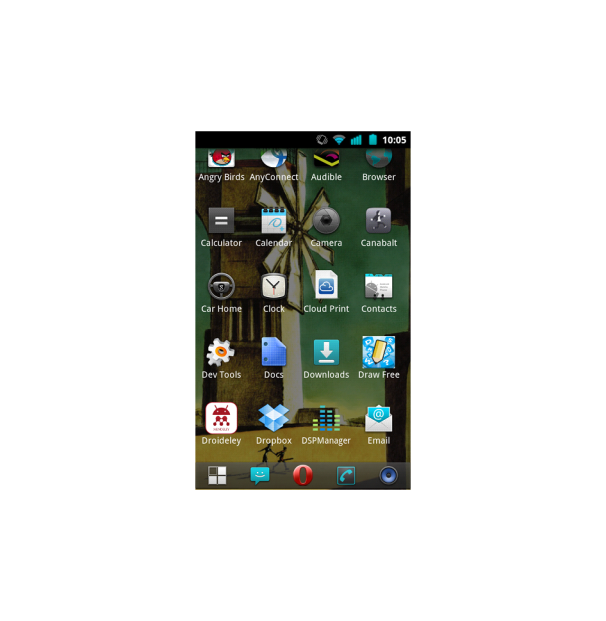
Before you begin migrating your life from your BlackBerry to your new Android device, I’d like to review the main difference between BlackBerry and Android hardware. All BlackBerry devices have keyboards, but only some models have touchscreens; on Android it’s the opposite, with every Android device sporting a touchscreen but fewer and fewer coming equipped with keyboards. Although most people seem to have gotten used to typing on a touchscreen, I’m not one of them, and if you aren’t either you might want to look at our collection of the best smartphones with a full QWERTY keyboard for assistance in making a purchase.

Setting Up Email

Now, moving on to software. First--and probably most important for a majority of BlackBerry users--you have to set up your email accounts on your new Android device. Google really wants you to use Gmail, and the majority of Android phones are designed to reflect this, with a friendly home-screen Gmail icon that needs only your username and password to be effectively configured.
If you don’t already have a Gmail account for personal email, by all means make one--it’s a great service, and you’re going to need it anyway to sync your Outlook calendar. If you already have a Gmail account, you may want to consider persuading your IT department to forward all of your business mail to Gmail automatically; many companies balk at this notion because they’d rather not have their mail travel through Google’s servers, but the fact is that you could do a lot worse, and anybody who can arrange this option is rarely unhappy with it.
If you decide not to go that route, you’ll have to use the alternate email application installed on Android phones. Depending on your version of Android, this application may be called 'Email' or 'Mail', but it’ll certainly be present; open your App Drawer (the scrolling list of all the apps that you have installed), and take a look. While the setup options for the Email app seem simple (and they actually are, if you’re using them to configure a common email address such as one from Yahoo), you’ll probably need some technical information from your IT folks to configure a corporate email server. If your office uses Outlook for mail on your desktop PCs, you likely have a Microsoft Exchange server. Microsoft provides some good, straightforward instructions for configuring Exchange email. The only information you’ll need that you might not have already is your email server name, and you should be able to find that information by clicking Help, Aboutin Outlook and checking under the 'External POP Settings' line. If the setup process asks whether to use a secure connection and to accept any SSL certificates, it’s a good idea to say yes to both. Input the necessary information, finish the setup process, and you should be all set.
How to Migrate From BlackBerry to AndroidThis screenshot shows the generic 'Email' app in the bottom-right corner of my App Drawer, with the App Drawer icon (unlabeled) in the bottom left.

Importing Contacts and Calendars

Next, you should import your contacts and calendars. The easiest way to do this is to go tohttp://m.google.com/sync on your BlackBerry device’s browser; this action will automatically install the software to begin syncing your contacts and calendars with Google’s cloud. Once the Google Sync app is installed, open it, input your Gmail account details, check the app settings to ensure that both Contacts and Calendar are checked, and press Sync Now. If you don’t intend to keep using the BlackBerry, you can go ahead and power it down for the final time after sync has completed, as you won’t need it anymore. You can and should also install the desktop version of Google Sync so that your new phone can remain automatically synced to your Outlook calendar--no docking or wires needed. Once this sync is complete, open the Calendar app on your Android phone, and see what you think!
How to Migrate From BlackBerry to AndroidGoogle Sync on BlackBerry

Acquiring Apps

Finally, you’re going to need some replacements for your favorite BlackBerry applications. If you're interested in handling your office documents on the go, check out our basic guide tomanaging documents on your Android phone. You might also like the Evernote app for keeping track of memos and automatically syncing them to a desktop computer. Unfortunately, you can’t use BlackBerry Messenger on Android, but you can install Skype from the Google Play store (the equivalent of BlackBerry App World); Google also provides its own replacement, called Talk, which automatically makes you available for chat with anyone you’ve corresponded with via Gmail. If that doesn’t sound like something you want, just open the Talk app, go to the Settingsmenu, and uncheck Automatically sign in.
You should try to use your Android phone on wireless networks when they’re available, such as at home, in order to save on data consumption and battery life (if you weren’t already in the habit of doing so with your BlackBerry). On most Android phones, the Wi-Fi configuration is somewhat unhelpfully buried under Menu, Settings, Wireless and Networks, Wi-Fi Settings(where you’ll probably want to uncheck Network notification so that your phone will stop shouting about new networks being available). It’s easy to set up, though: Just click on the network you want, and enter the password.
After that, all that’s left is for you to get used to the Android interface. You’ll probably find that it’s quite nice--tapping and dragging are both very intuitive, and judicious use of the Back button at the bottom of your device will help you speed through menus. To access the notifications at the top of your screen (one of the best features of Android), simply drag them down and tap them individually.
Congratulations on your move, and good luck!

3D Desktop


License Type: Free
Price: Free
Date Added: Nov 18, 2010
Operating Systems: Microsoft Windows 7
File Size: 19.945 MB
Author: Windows 7 Themes.net
Download Now


Editorial Review of 3D Desktop

The 3D Desktop themepack contains a whopping 63 wallpapers that range from colorful abstract images to glorious natural landscapes. If you don't find something in this themepack that pleases you, then you probably don't enjoy digital art in any form.

That said, the wallpaper collection is uneven--some wallpapers are clearly commercial ("Avatar," for example) and some are just not of great quality. No worries; after you install the themepack you can right-click your desktop, choose Personalize, and drop individual wallpapers from the Desktop Background slide show by removing the check mark on thumbnails for unwanted images.

Overall, however, the free 3D Desktop theme pack is terrific. It contains some gorgeous scenes--the mountain landscape I've selected to illustrate this review, for example--and truly amazing 3D graphic artwork. Your windows get a clear "frost" treatment that works with all of the images; your sound profile is changed to Windows' Characters; and you get the Windows Bubbles screen saver (which seems like a great choice for this Windows 7 theme).

Note: To install the 3D Desktop theme, just unzip the archive file and double-click the themepack within. Windows does the rest.


The 22 Best Android Apps Download


Productivity Tools

Check your head: In the Thinking Space "mind-mapping" app, you can create maps to connect thoughts and ideas. It's great for organizing and for forming new concepts. Ad-supported free version, $4 premium version
Manage your files: Astro File Manager makes your phone act as a miniature PC. You can copy/move/rename files, back up apps, send files as attachments, and create compressed files. Ad-supported free version, $4 premium version
Handle tasks wisely: The GTasks task manager syncs with the desktop Google Tasks, which you can also access in the Web version of Gmail and Google Calendar. It's so useful, it should be in­­cluded on every Android phone. Free
Manage archives: The powerful AndroZip File Manager works with archives, including 7ZIPhone, BZIP2, GZIPhone, RAR, TAR, and ZIPhone files. You can use it to create GZIP, TAR, or ZIPhone archives, too. Free
Text with panache: Forget the stock SMS utility. Handcent SMS brings customizable texting tools--with iPhone-style speech bubbles--to Android. Free

Utilities


Entertain a child:
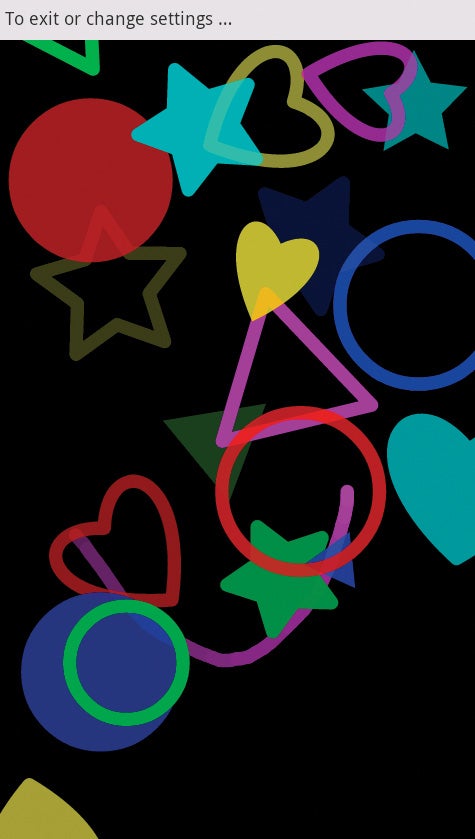
 With Toddler Lock you can turn your phone into a toy that can keep your little one rapt for hours. It shows a single screen (locking away all others) that displays colorful shapes when your toddler touches it. Soothing sounds play in the background. Free
Use gestures to find files: Gesture Search lets you quickly locate a contact, a bookmark, an app, or a music track by drawing letters and digits on your phone's touchscreen. Free
Find the best Wi-Fi: Want to find the least-crowded Wi-Fi channel? Wifi Analyzer shows a graphical representation of Wi-Fi SSIDs' signal strength, plus which channels are being used. Free
Customize alerts: In Missed Call you can customize your phone's LED light, ringtones, vibrations, and alerts for missed calls, incoming calls, SMS, Blue­tooth, and calendar events. Free
Find a lost Android: If you lose your phone, AntiDroidTheft turns on remote GPS tracking so that you can determine its location. You can also trigger the phone's camera to shoot an image that might help you locate the handset. Free
Shine a light: Color Flashlight turns a phone into a bright light with a wide array of hues and strobe patterns. Free

Browsers


View Flash video now:
 Thanks to the Skyfire browser, you can play streaming Flash video. 'Nuff said. Free
Browse better: The Dolphin Browser HD Web browser has tabs, gesture-based navigation, and plug-ins. It's a far more functional browser than the one that came preloaded on your phone. Free
Share Web pages: Bookmarklet plugs into the Android Web browser (or Dolphin HD) and lets you share Web pages with AIM, Bit.ly, Delicious, Digg, Facebook, Twitter, and other services. Free

Organizers and Timesavers

Make recipes mobile: Through Digital Recipe Sidekick you can browse and import recipes from AllRecipes.com, save recipes to SD Card, e-mail them, edit them, or enter your own. The app will even read recipes to you. Free
Barcode Scanner for AndroidBarcode Scanner helps you look up products for comparison shopping.Scan bar codes: Barcode Scannerhandles bar codes--including 2D QR codes--and lets you look up the associated product or URL for instant price checks and comparison shopping. Free
Convert and calculate: The in-beta ConvertMe app is a handy unit converter, currency converter, and tip calculator. It comes with more than 1500 units across more than 65 categories, and it supports 14 languages. Free
Take a measurement: The Smart Measure app, which uses your phone's camera, measures the height of objects and estimates the distance between your phone and the object. Free
Level it: With Spirit Level Plus, you can use your phone to make sure that pictures hang straight. The app also shows the angle of incline. Free

Audio and Photo Apps


Track podcasts:
 With Beyond­Pod, which integrates with the Android music player, you can discover and manage audio and video podcasts. The premium version adds better controls for updating and managing subscriptions. Free basic version, $7 premium version
Discover cool podcasts: The Listen app helps you search for thousands of audio feeds, stream them, or subscribe to them. It integrates with Google Reader on the desktop, as well. Free
Work smart with photos: Using Picasa Tool Pro you can batch-upload photos, as well as browse and manage your albums, photos, and comments.
Related Posts Plugin for WordPress, Blogger...